This is Phase 2 of my SC-500 project. Phase 0 established the tenant foundation and break-glass account design, while Phase 1 removed standing privilege by converting Security Administrator access into a just-in-time, eligible assignment through PIM.
Phase 1 focused on who can obtain privileged access and for how long. The next question is: under what conditions should a user be allowed to sign in in the first place?
That is where Conditional Access comes in.
In this phase, I first establish the network and risk signals that Conditional Access will use, including Named Locations. I then build five Conditional Access policies around those signals and deploy them in report-only mode. This allows me to observe the policies’ potential impact, validate that legitimate access is not unintentionally blocked, and understand the resulting sign-in behaviour before moving towards enforcement.
2.1 Creating Named Locations
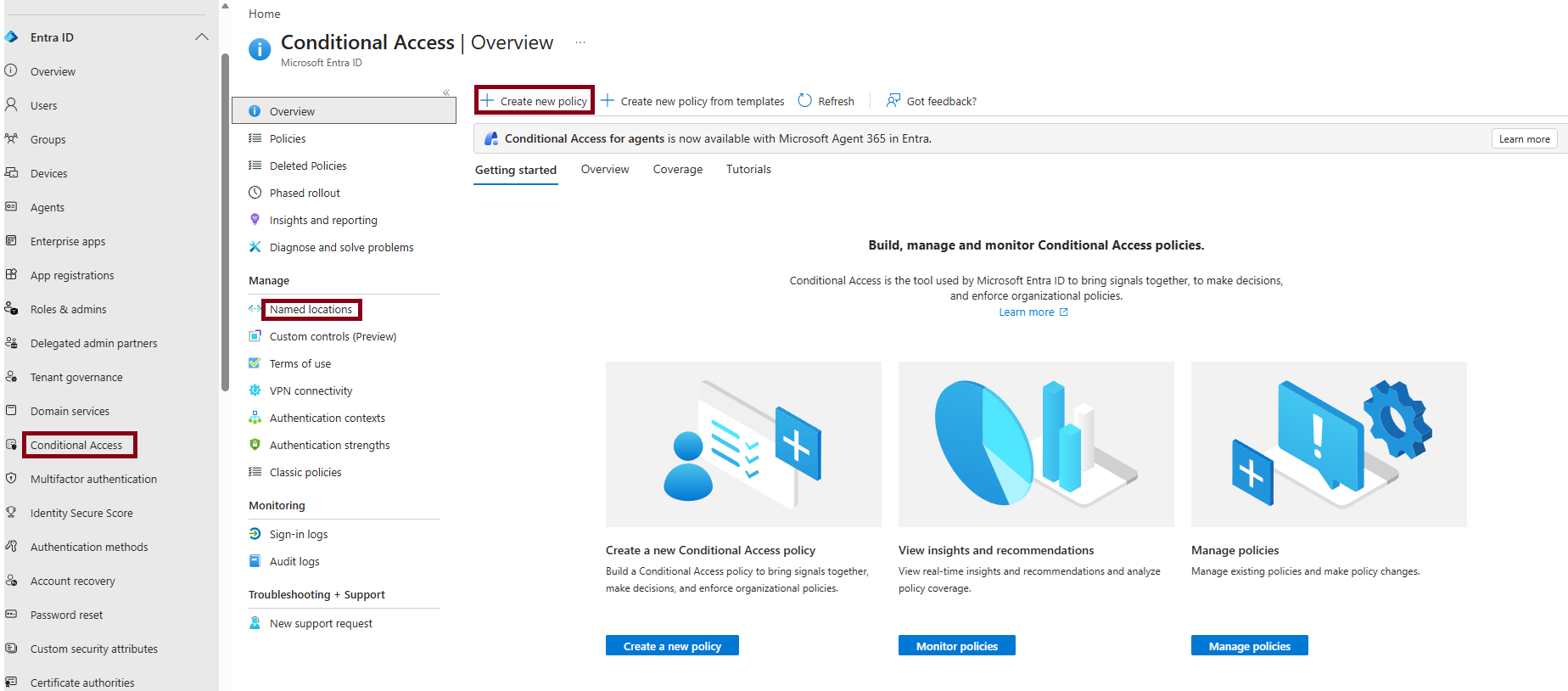
Named Locations live under Entra admin center → Protection → Conditional Access → Named locations. Before any policy can reference “trusted” or “blocked” locations, those locations have to exist first.
2.2 Adding a Trusted IP Range
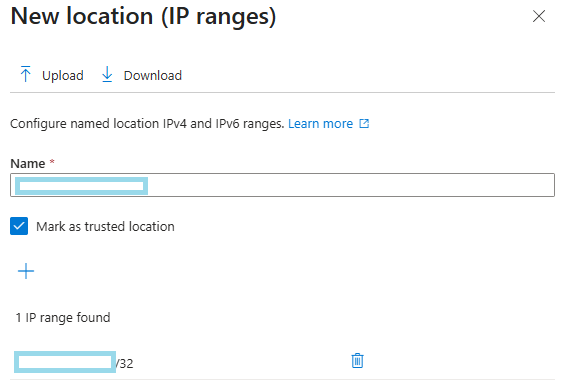
I added an IP ranges location for my own home network, so I don’t get MFA-challenged on every sign-in from a network I already trust.
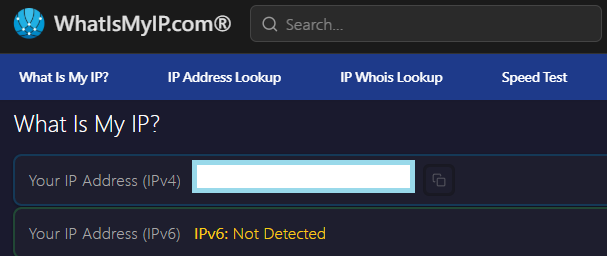
To do this properly, I needed my public IP in CIDR notation rather than a plain address:
- Used
whatismyip.comto find my current public IP. - Converted it to CIDR notation (a single address as a
/32).
2.3 Marking the IP Range as Trusted
With the CIDR range entered, I also had to explicitly mark the location as trusted — this is a separate checkbox from just adding the range, and it’s what later lets Conditional Access policies treat this network differently (for example, skipping MFA prompts for sign-ins from it).
2.4 Adding a Countries Location
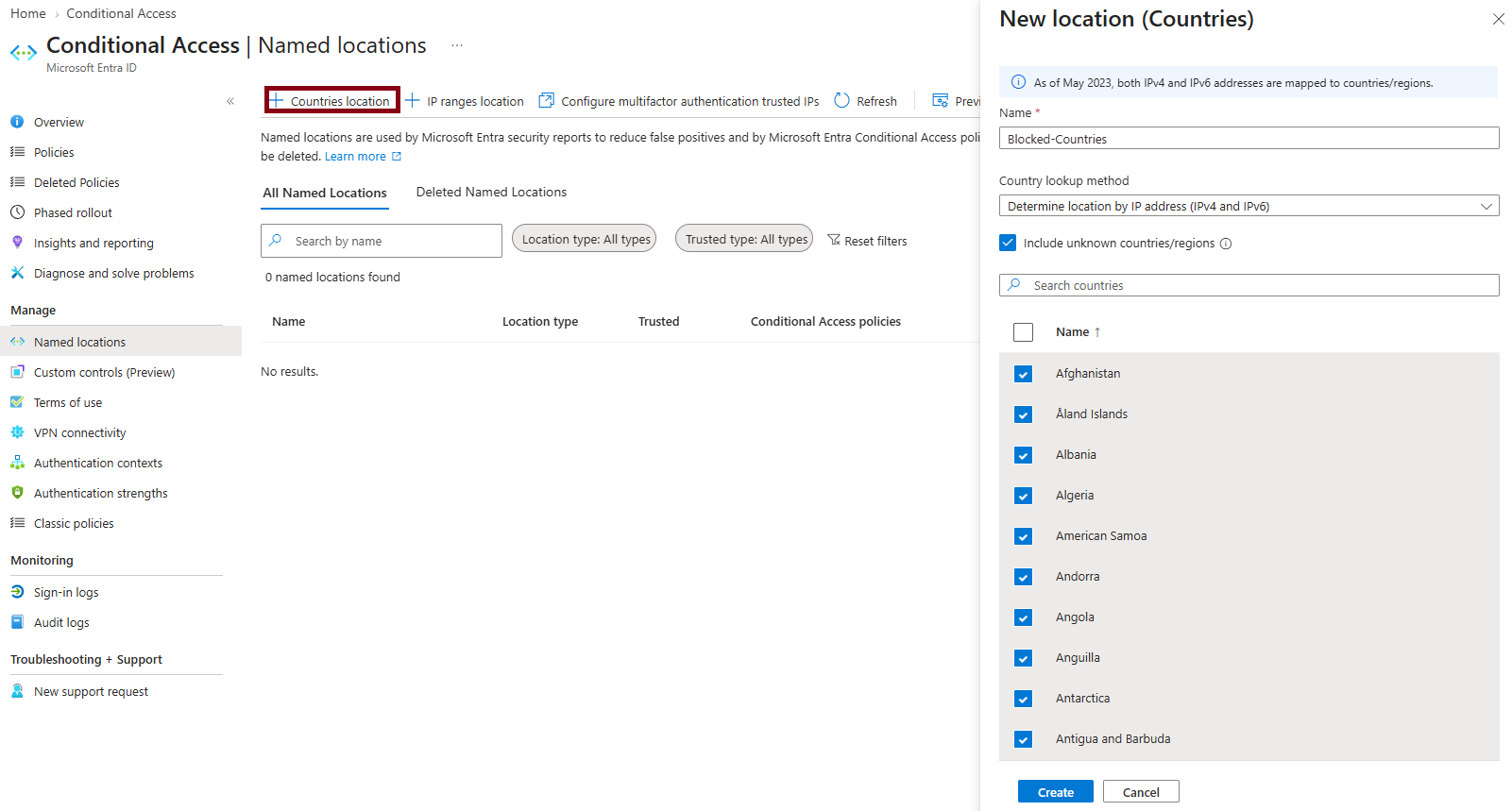
Next, a Countries location, used later to block sign-ins from countries the organisation has no legitimate business in.
Two settings mattered here:
- ✅ Include unknown countries/regions — traffic that can’t be geolocated (VPNs, certain proxies, some cloud egress ranges) gets treated as untrusted by default, rather than silently passing through.
- Selected the countries to block, excluding my own location — that is where the legitimate sign-ins expected to come from.
2.5 Creating the First Conditional Access Policy
With the named locations in place, I moved to Conditional Access → Create new policy.
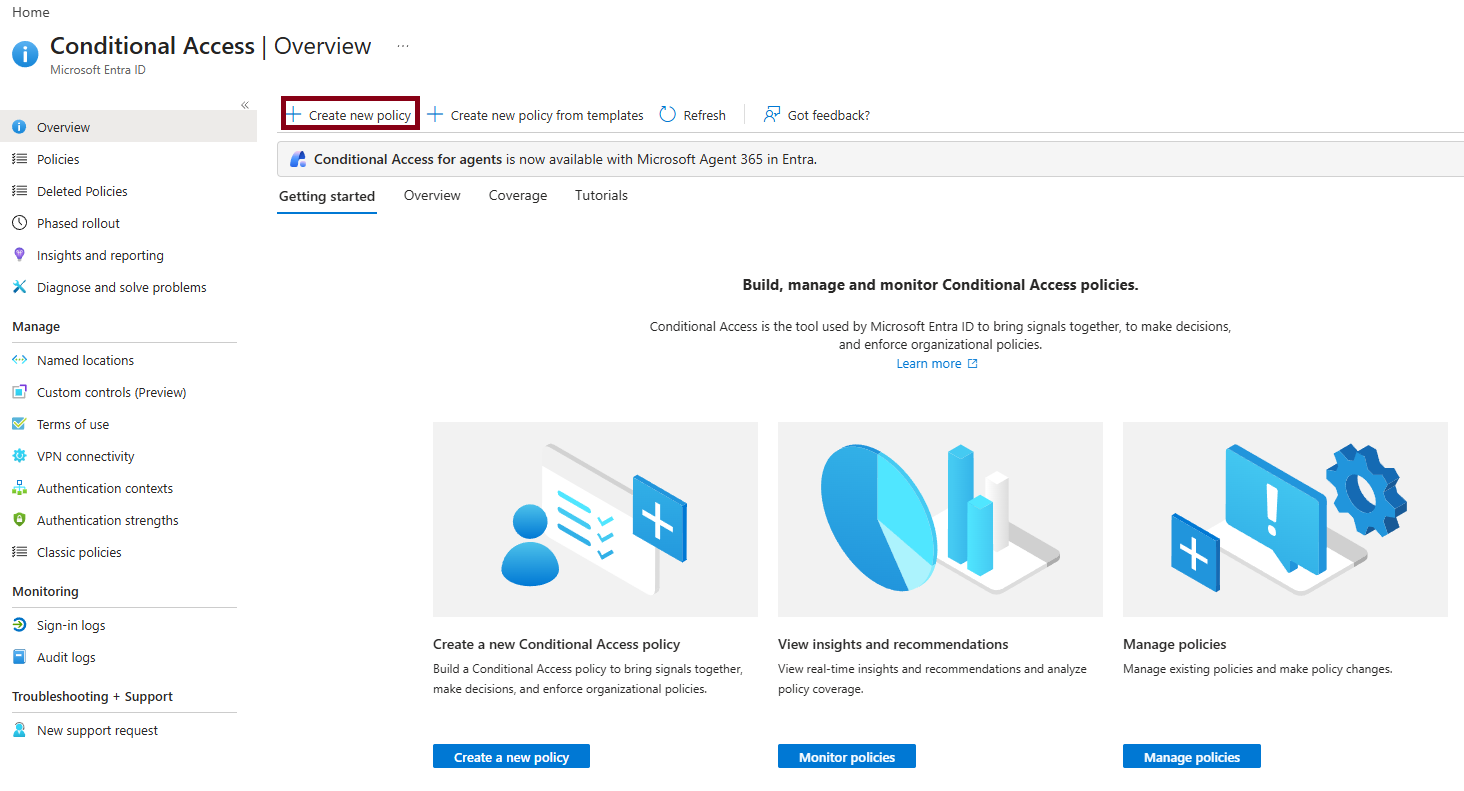
2.6 Policy 1 — Require MFA for Admins
CA01-Require-MFA-for-Admins
- Users — Include → Directory roles → Global Administrator, Security Administrator, Privileged Role Administrator. Exclude → Users and groups →
grp-BreakGlass. - Target resources → Cloud apps → All resources.
- Grant → Grant access → ✅ Require multifactor authentication.
- Enable policy → Report-only.
- Create.
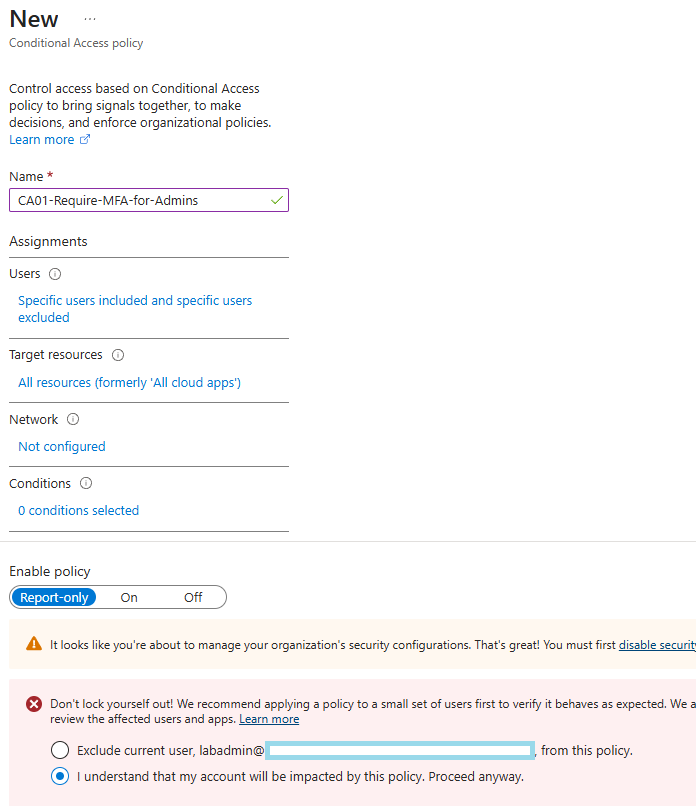
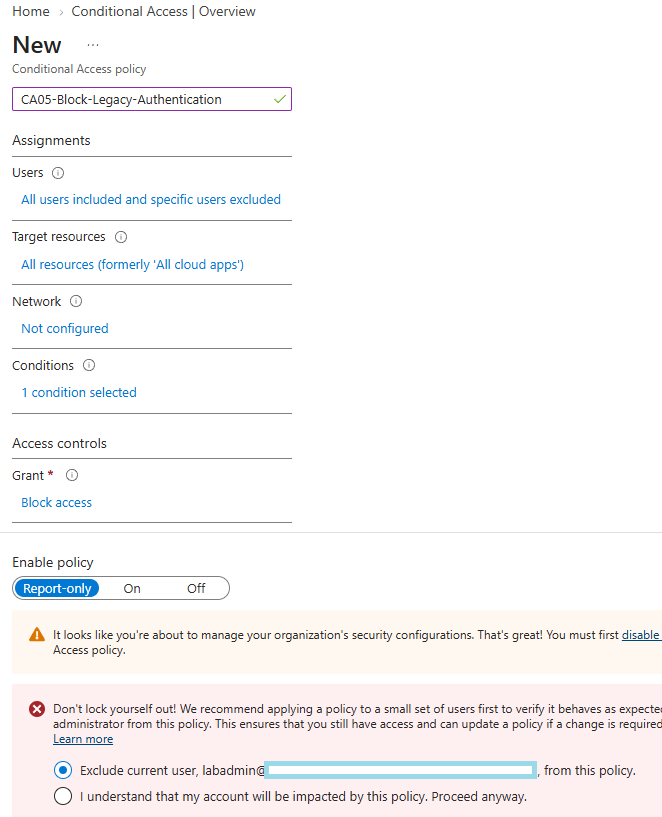
Creating this policy triggered a warning because labadmin, the account I was currently signed in with, is included through one of the targeted directory roles. Entra provides a convenient safeguard here: a checkbox that automatically adds the current account to the policy’s exclusions. I deliberately left this unchecked and instead selected “I understand that my account will be impacted by this policy. Proceed anyway.”
Why not use the automatic exclusion?
Selecting that option would add labadmin to the policy’s exclusion list. However, I already have two dedicated break-glass accounts (From Phase 0) whose purpose is to remain outside Conditional Access enforcement. Adding labadmin as a third exclusion would create another “Global Administrator identity” that could bypass the policy, unnecessarily expanding the exception path.
The design is therefore intentional: the break-glass accounts are the exception, not my day-to-day administrative account. labadmin remains subject to the same Conditional Access controls as any other account, allowing me to test the policy against a realistic administrative identity while keeping the emergency bypass tightly scoped.
2.7 Policy 2 — Block Untrusted Countries
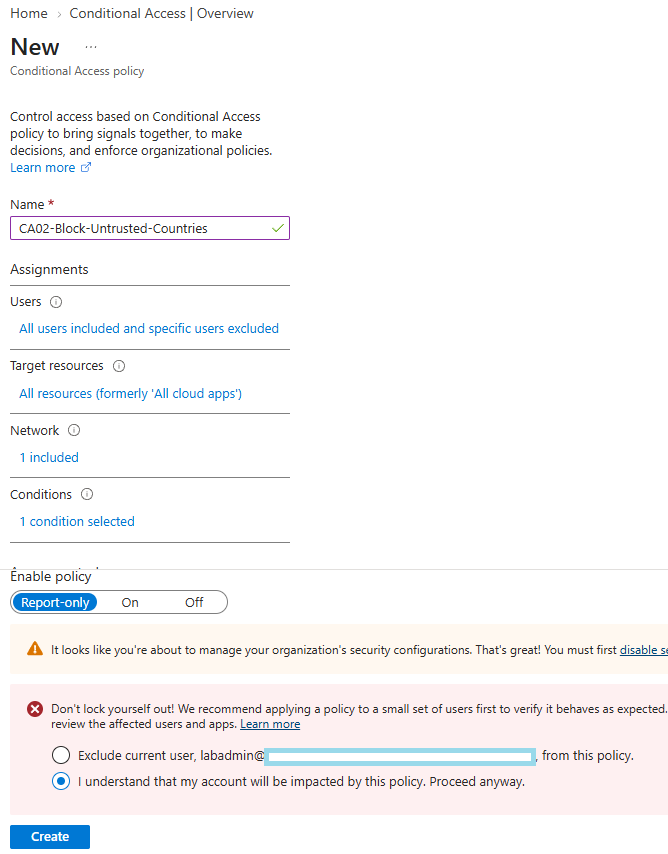
CA02-Block-Untrusted-Countries
- Users — Include: All users. Exclude:
grp-BreakGlass. - Target resources — All resources.
- Conditions → Network → Include → Selected networks and locations →
Blocked-Countries. - Grant → Block access.
- Report-only → Create.
2.8 Policy 3 — Sign-In Risk Requires MFA
CA03-Signin-Risk-Require-MFA
- Users — Include: All users. Exclude:
grp-BreakGlass. - Target resources — All resources.
- Conditions → Sign-in risk → High and Medium.
- Grant → Require multifactor authentication.
- Report-only → Create.
The configuration screen here looks the same as the previous policies, just with a different condition selected, so I didn’t screenshot this one separately.
2.9 Policy 4 — User Risk Requires Password Change
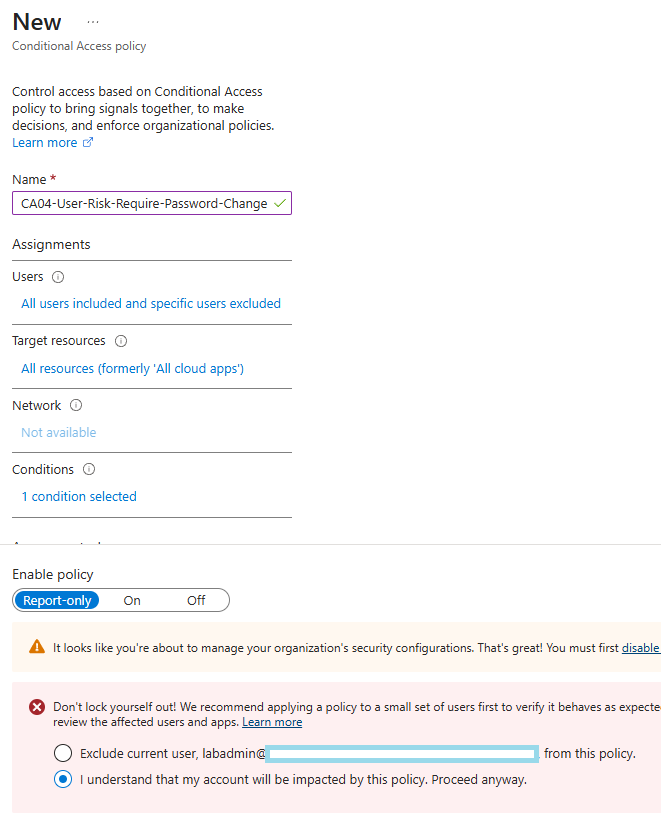
CA04-User-Risk-Require-Password-Change
- Users — Include: All users. Exclude:
grp-BreakGlass. - Target resources — All resources.
- Conditions → User risk → High.
- Grant → ✅ Require multifactor authentication + ✅ Require password change.
- Report-only → Create.
Why not put sign-in risk and user risk in the same policy?
Conditional Access conditions within a single policy are evaluated using AND logic. In other words, every configured condition must be satisfied before the policy applies.
If sign-in risk and user risk were combined into the same policy, the policy would only trigger when both risk conditions were met simultaneously. A user with elevated sign-in risk but no elevated user risk, or vice versa, would not match the policy at all.
That would create a significant detection and enforcement gap. These two signals represent different risk scenarios and should therefore be handled independently. Microsoft’s guidance recommends using separate Conditional Access policies for sign-in risk and user risk for this reason.
Keeping them separate means each risk signal can trigger its own appropriate control without requiring the other signal to be triggered at the same time.
3.0 Policy 5 — Block Legacy Authentication
CA05-Block-Legacy-Authentication
Legacy authentication protocols such as POP, IMAP, and SMTP AUTH do not support modern authentication, which means they cannot enforce MFA through Conditional Access.
This makes legacy authentication a particularly attractive target for password spray attacks. An attacker can repeatedly attempt stolen or guessed credentials against these protocols, while Conditional Access MFA requirements never get a chance to intervene.
For that reason, blocking legacy authentication is one of the highest-priority Conditional Access controls Microsoft recommends for organisations. It removes an authentication path that cannot enforce modern security controls and significantly reduces the attack surface for credential-based attacks.
3.1 Report-Only Rollout Plan
All five policies are now deployed in Report-only mode. None of them is actively blocking access or prompting users yet.
The next step is to validate their behaviour against real sign-in activity before enabling enforcement:
- Keep all five policies in Report-only mode.
- Sign in several times as
aliceandbobto generate realistic sign-in activity for Conditional Access to evaluate. - Allow 12–24 hours for the sign-in data and policy evaluation results to accumulate.
- Review the Report-only results for each policy to identify which users would have been blocked, challenged, or granted access.
- Enable the policies one at a time, reviewing the impact after each change.
- After each policy is enabled, verify that the tenant remains accessible through the designated break-glass accounts before proceeding to the next policy.
This staged approach reduces the risk of accidentally locking out legitimate users or administrators. Rather than moving directly from configuration to enforcement, I can first observe the policies against real sign-in activity, identify unexpected matches, and then introduce each control incrementally.
3.2 Results
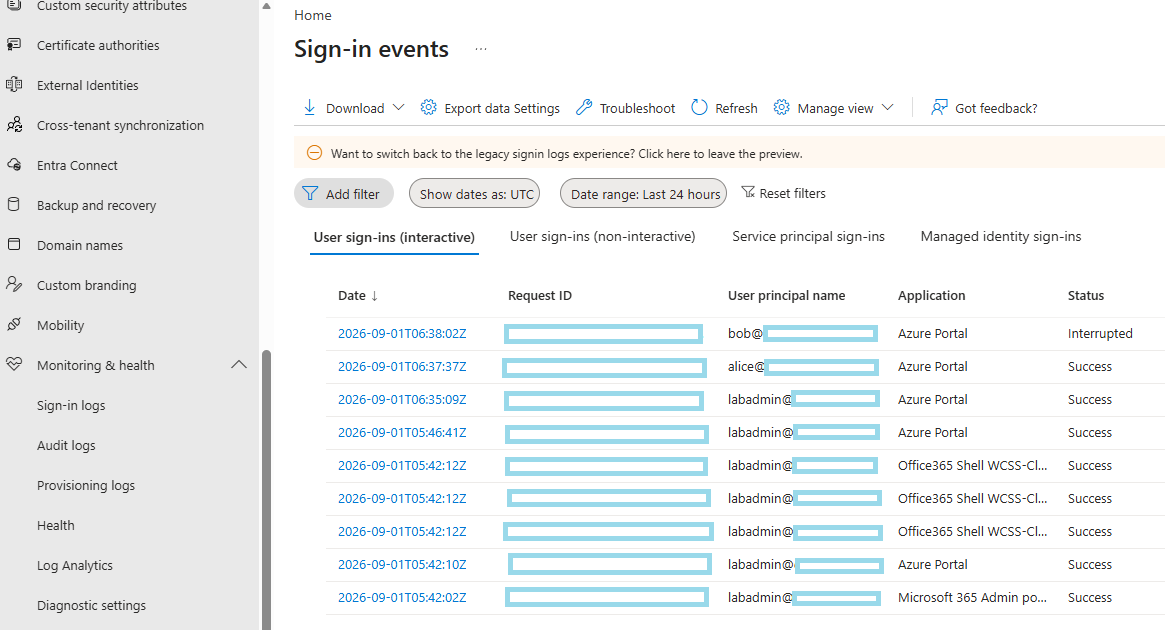
I signed in a few times as alice and bob to generate real sign-in activity for the policies to evaluate:
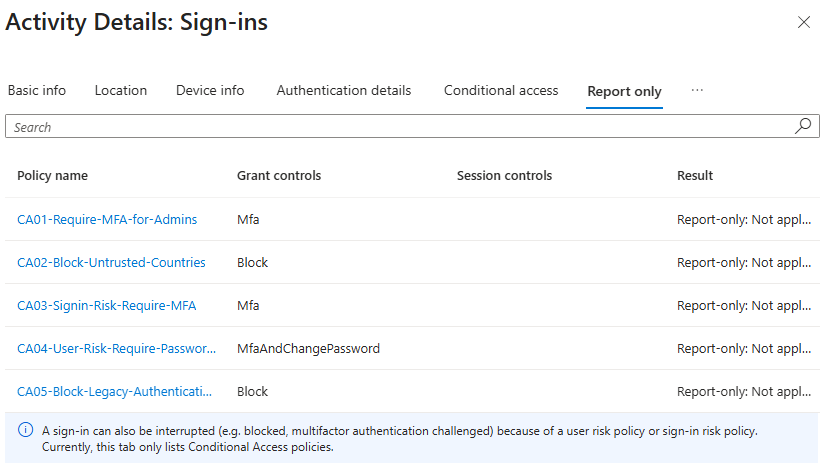
After waiting for the data to accumulate, I reviewed the Report-only results per policy in the sign-in logs:
With the results looking as expected, I switched the policies from Report-only to On, one at a time, verifying tenant access with a break-glass account after each one:
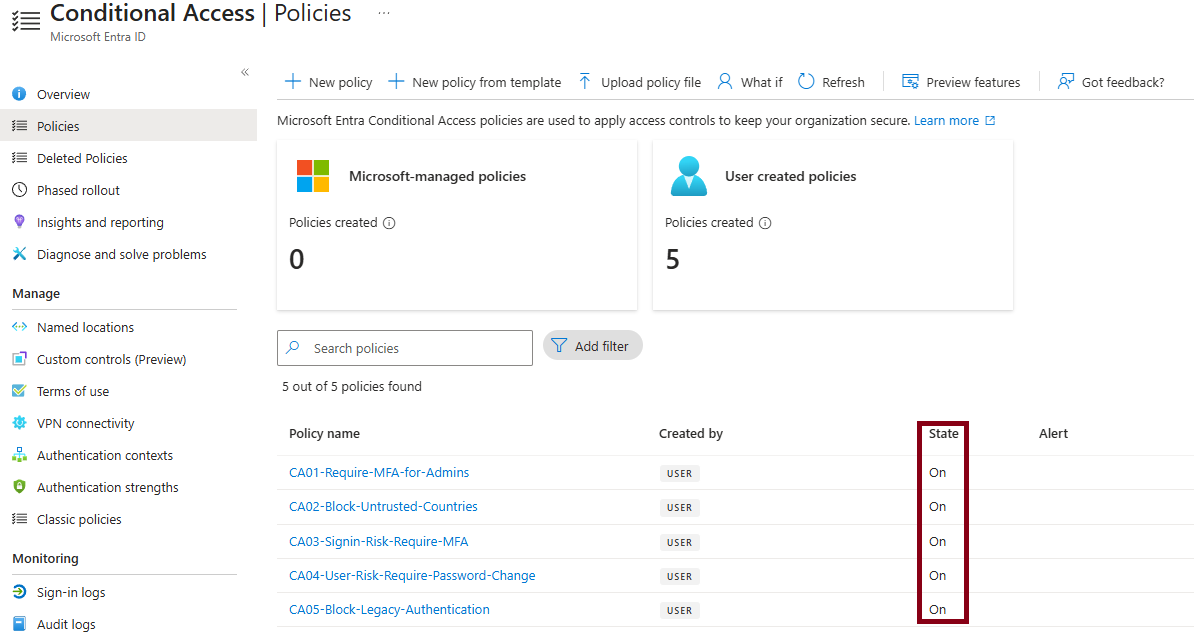
One thing worth calling out: the sign-in logs show the break-glass accounts’ sign-ins as “Not applied” for these Conditional Access policies, rather than evaluated and passed.

That’s the grp-BreakGlass exclusion working exactly as designed back in Phase 0 — the break-glass accounts aren’t being evaluated against these policies at all, not merely passing them. Confirming “Not applied” here, rather than “Success,” is the actual proof the exclusion is doing its job.